RSS.ListFeedItems() — remains valid, so the customization steps still apply once the template is imported. We could not confirm a formal end-of-life announcement for Bulletins itself, so treat it as deprecated-but-available rather than fully retired.Teams is quickly becoming the all-in-one hub for work management. In this post, I will be sharing how to use the Teams’ Bulletin app with Power Apps to aggregate RSS feeds.
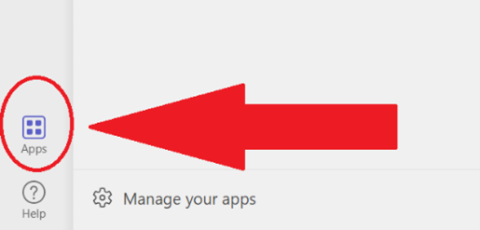
- Navigate to the apps store in the Teams application.
- Search for “Bulletins” in the search bar, select and click on “Add to a team”
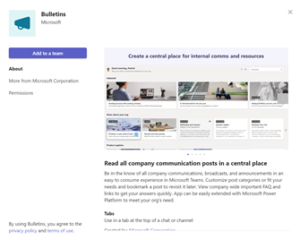
- Type in your desired team and select “Set up a tab”
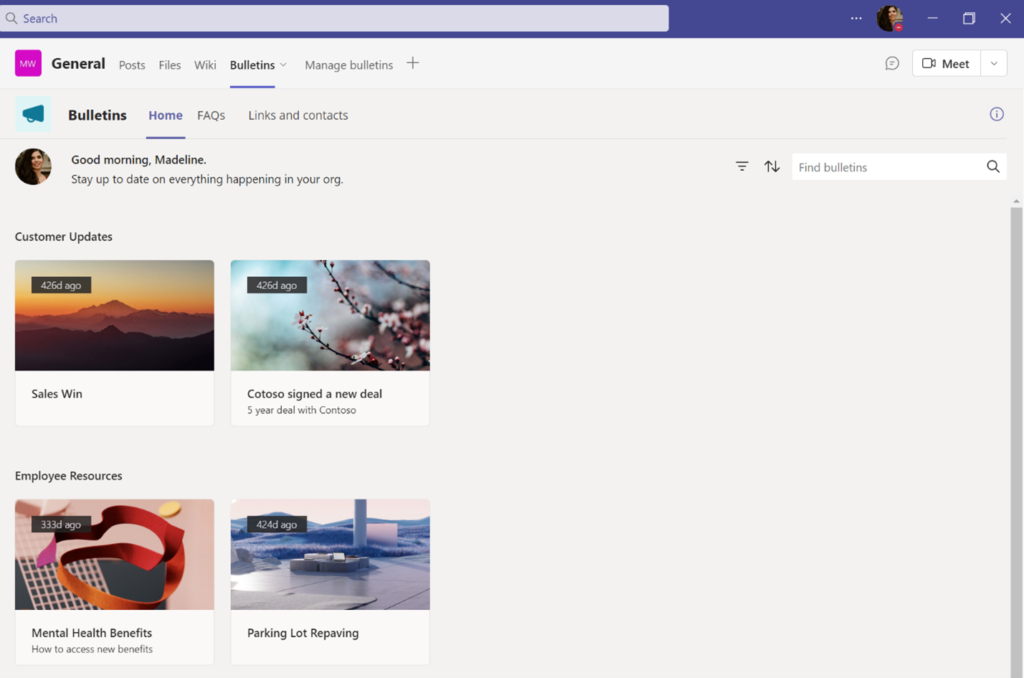
- Navigate to the new tab and wait for the application to finish installing. Select approve if a permissions window pops up. Once installed the tab will look similar to this.
- Navigate back to the apps store, search for “Power Apps” and select “Add”
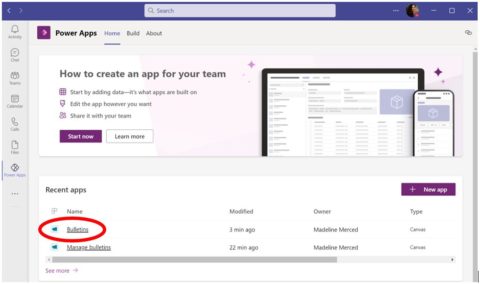
- In the left menu bar, click on Power Apps to open. Click on the “Bulletins” link under “Recent apps”. This might take a few minutes to load.
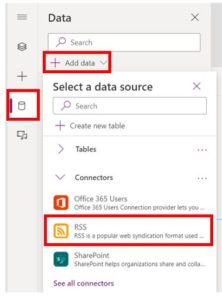
6. In the Power Apps screen, select the "Data" menu item > “+ Add data” > “Connectors” > Select “RSS”
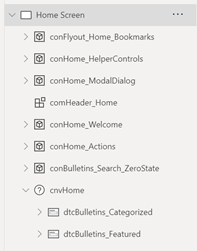
7. Navigate to Tree view and select “Home Screen” to open. You’ll see an empty bulletin page.
8. Select the “+” button in the left menu to open the Insert menu.
9. Select “Vertical Gallery” and center on the page.
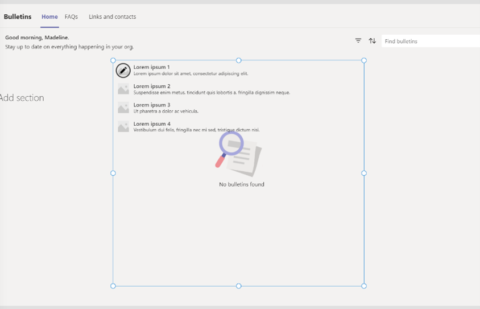
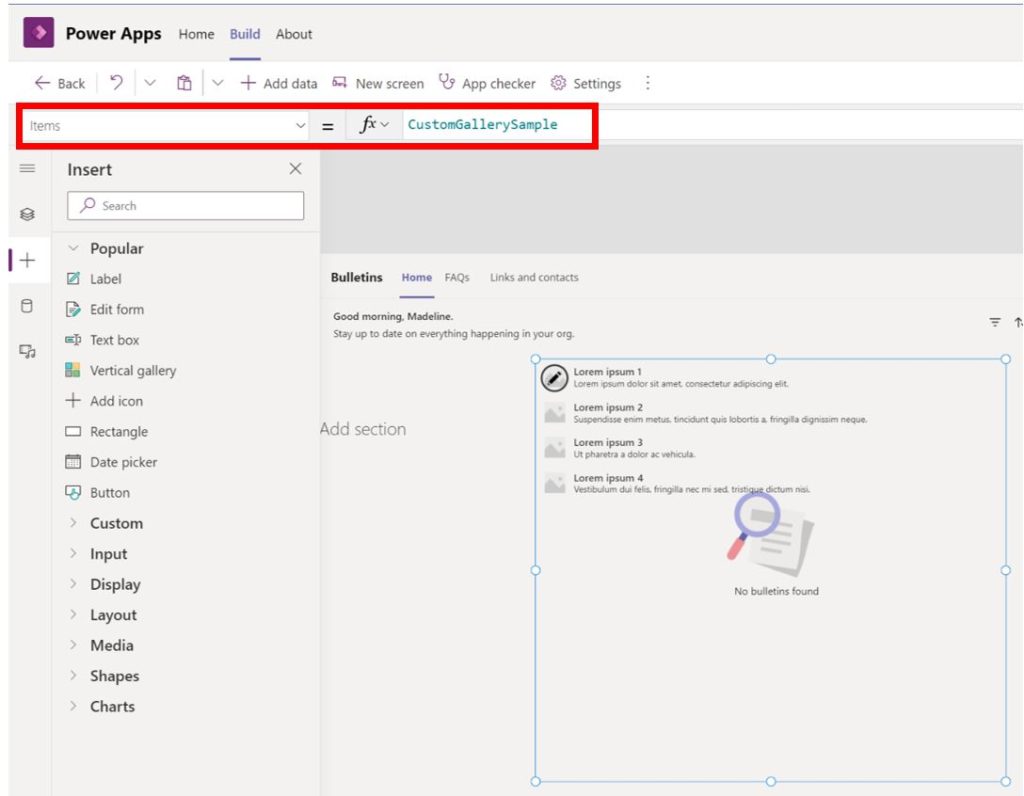
10. In the formula bar, enter "RSS.ListFeedItems("YOUR RSS FEED")". Make sure the dropdown to the left of the formula is set to “Items"

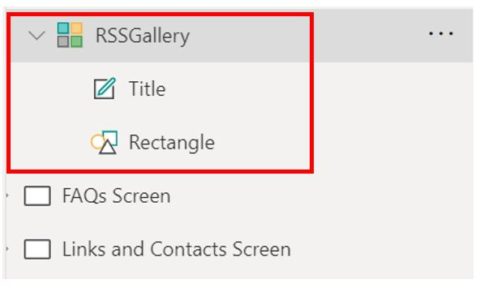
11. Under the Tree view, select the Gallery under the Home Screen. Here is where you will see the different components for each gallery item.
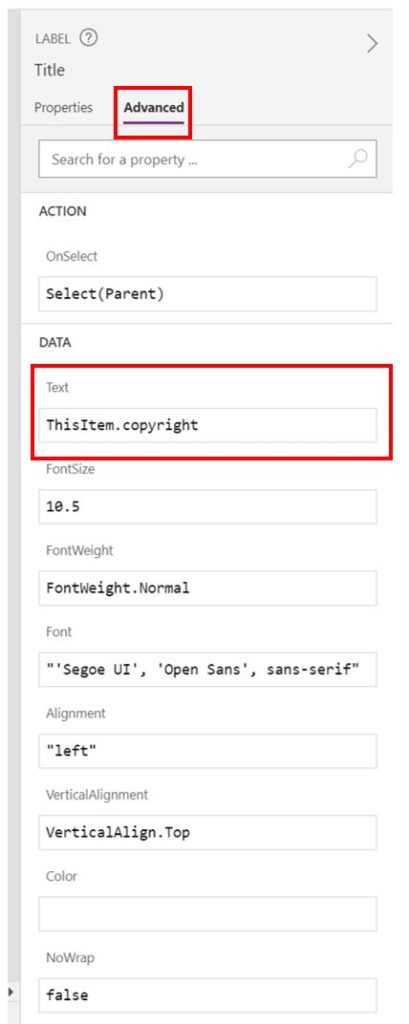
12. Select "Title" to open the sidebar, click on the Advanced tab. Change the Text field under data to match your desired data. For example, changing the Title text field from ThisItem.copyright to ThisItem.title
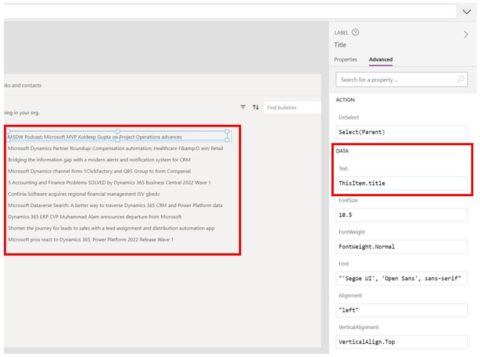
13. The data will automatically be updated in the gallery.
14. We are going to insert some additional fields to make our feed more robust. To add a summary field, add a label or text box with one of the items in your gallery selected. This will automatically add the field to each Gallery item.
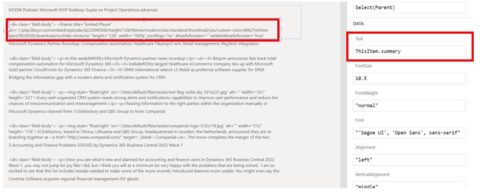
15. Change the text field under data in the advanced tab.
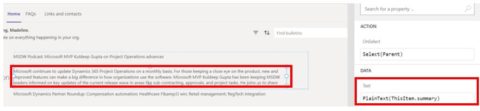
16. Although we are successfully pulling in summary information, it’s not very pretty. That is because it is pulling in the HTML with the text for the summary. Luckily, there is a simple fix for this. Wrap the “ThisItem.summary” selector with “Plain Text” like this:
PlainText(ThisItem.summary)
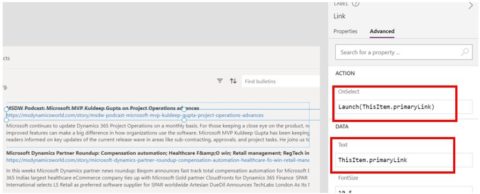
18. Under the OnSelect field, type “Launch(ThisItem.primaryLink)” Note: I changed the link text to blue under the properties tab
19. Hit "Save" and then "Preview" to see how your app looks. We now have a basic custom RSS reader app on Teams.
20. To use the app, select “Publish to teams”. Click “Next”, select the channels to use the app on and then save and close
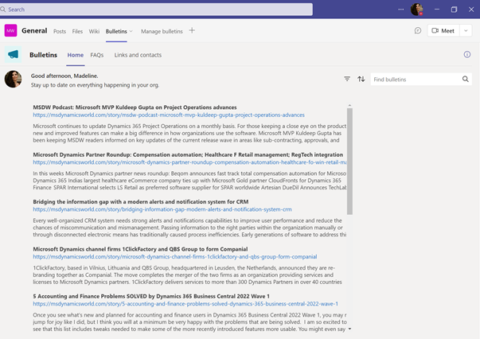
Now that you have a basic app, you can customize it with additional RSS feeds, bulletins, etc. You can even use RSS feeds that include videos or images. As a bonus, I’ve included a quick overview of how to format an RSS feed with video.
Caf2Code is a Microsoft Solutions Partner specializing in Dynamics 365 Finance & Operations, Power Platform, and Power BI. Originally published February 7, 2022; restored to caf2code.com in 2026.